Working with Files
Document Metadata
Category: Development → Anvil → IDE
Audience: Developers, Solution Engineers, Administrators, Technical Teams
Difficulty: Beginner
Time Required: 10–15 minutes
Prerequisites: Access to a ConnexCS account, an Anvil project, and the ability to open the Anvil IDE.
Related Topics: Document Guide — documentation standards, Getting Started — signing in and project selection, Anvil IDE Interface — workspace overview, ScriptForge — backend scripting, File History — version management.
Next Steps: Open and edit project files, create new resources, save changes, organize the project structure, and use File History to review or restore previous versions when required.
Overview
This guide explains how to work with files and folders in the Anvil IDE.
It covers opening and editing project files, creating new files and folders, saving changes, and understanding how the IDE automatically synchronizes updates with the ConnexCS platform.
These core file management features enable developers to efficiently organize project resources while ensuring changes remain up to date across the development environment.
Opening and Editing Files
Click any file in the Explorer to open it in the editor. Files are saved directly to ConnexCS — there is no local copy. 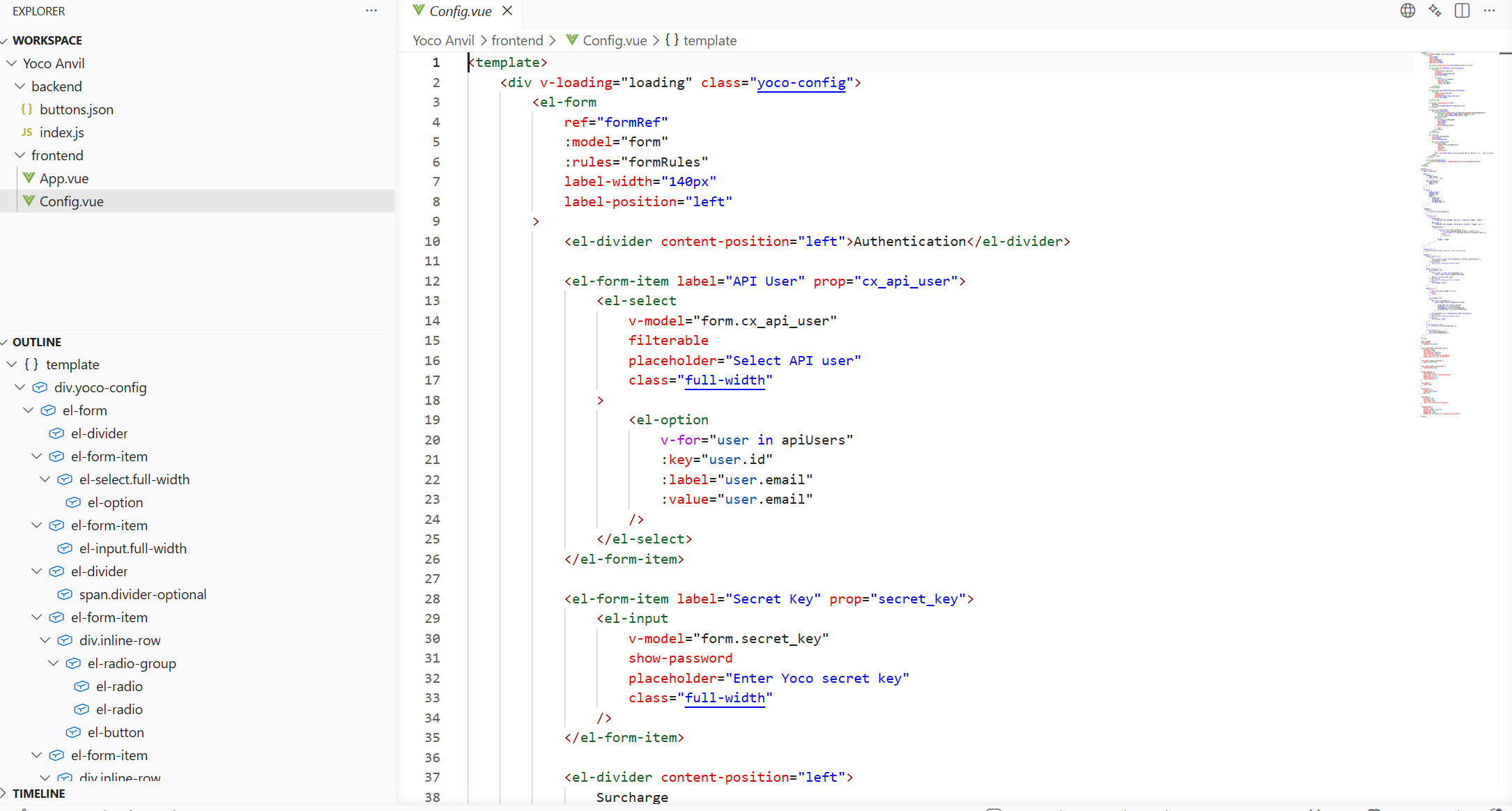
Creating Files and Folders
Right-click any folder in the Explorer and choose New File or New Folder. The new item is created inside the folder you right-clicked, or inside the last folder you selected in the tree. 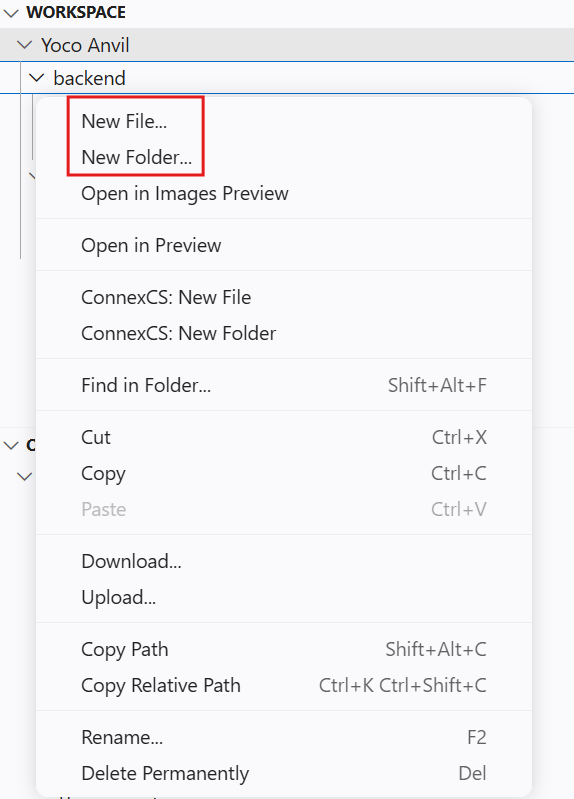
Another option is to click on the New Folder or New File icons when you hover over the project. 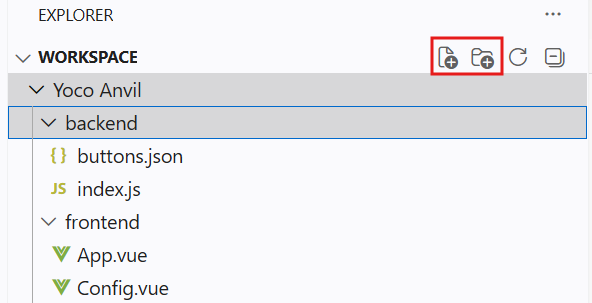
Saving
Files are saved automatically when you press Ctrl+S / Cmd+S. A save indicator appears in the editor toolbar when there are unsaved changes. If saving fails (for example due to a network issue) a warning button appears — click it to retry.
Real-Time Sync
If another person or process changes a file on the server while you have the IDE open, the Explorer and open editors automatically refresh to show the latest version. You do not need to manually reload.